> ## Documentation Index
> Fetch the complete documentation index at: https://docs.trymeridian.com/llms.txt
> Use this file to discover all available pages before exploring further.
# Exports
> View, download, and manage your data exports for a specific company profile.
Exports is where you can view and download files generated from Meridian (for example, Prompts exports and Citations exports). It is useful when you want to share results with teammates, send data to an agency, or keep an archive of reporting snapshots.
Exports are **company-profile specific**, so the first step is always selecting which profile you want to view.
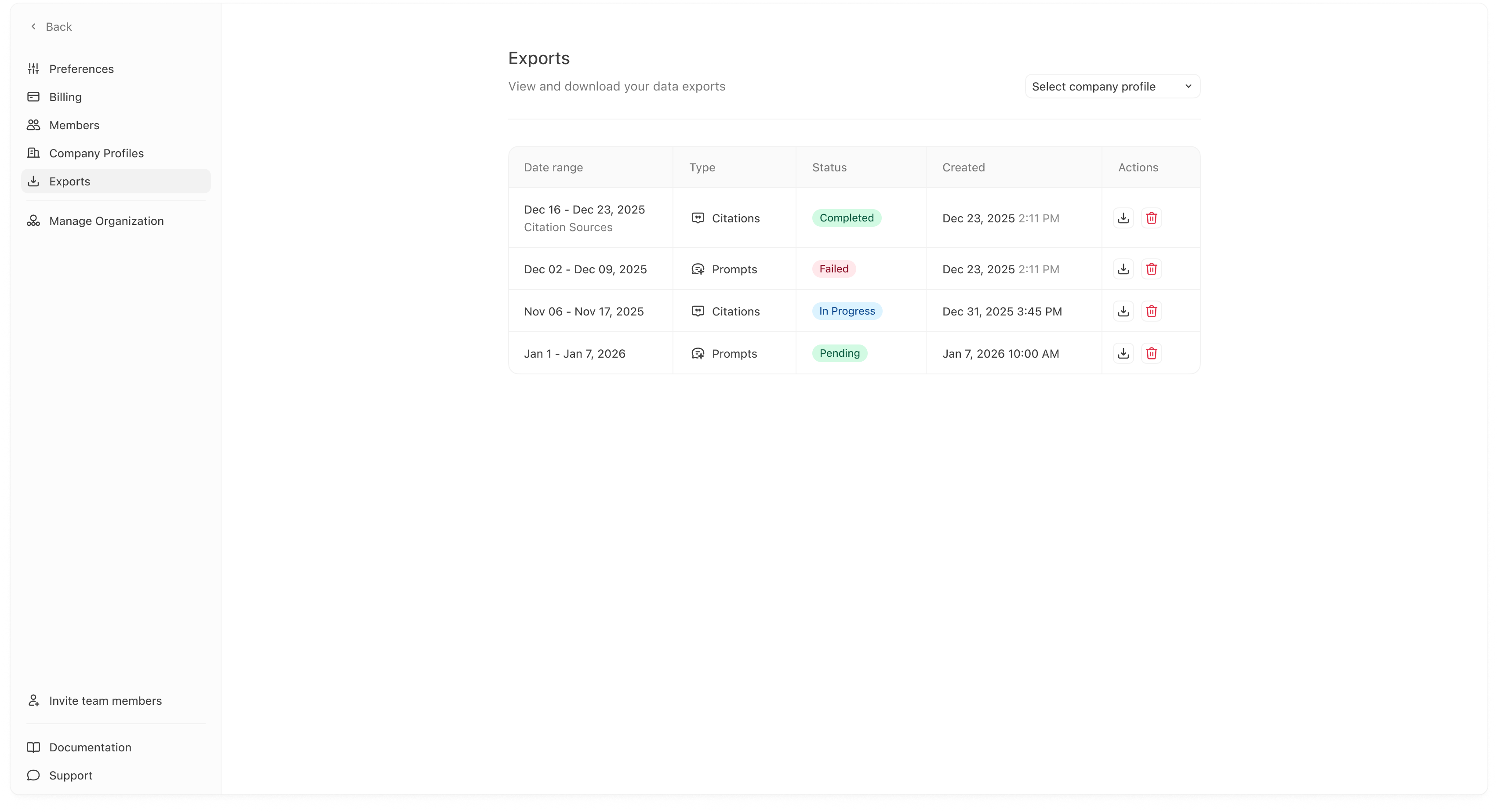 ## Select a company profile
Use the dropdown in the top right to choose a profile. Until you select one, you will see an empty state.
Once selected, you’ll see a table of exports for that profile.
## What you see in the exports table
### Date range
The time window the export covers (for example: Dec 16–Dec 23).
This is important when you use exports for reporting, because it tells you exactly which period the data represents.
### Type
The export category, such as:
* **Citations**
* **Prompts**
(Your workspace may support additional export types over time.)
### Status
Each export has a status so you can tell whether it is ready:
* **Completed**: the file is ready to download.
* **In progress**: the export is currently being generated.
* **Failed**: the export did not generate successfully.
If an export is stuck in “In progress” for a long time, it often means the job is still running or the system needs to retry.
## Downloading and managing exports
In the **Actions** column you’ll typically see:
* a **download** icon for downloading the export file
* a **trash** icon for deleting the export entry
Use deletion to keep your export list clean (for example, removing failed or outdated exports you no longer need).
Exports are a snapshot. If you want the latest numbers, generate a new export for your current date range rather than relying on an older file.
## Common questions
### “Why do I see Failed?”
A failed export usually means something went wrong during generation. The most common causes are temporary job issues or missing data in the selected period.
If you see failures consistently:
* try a wider date range,
* confirm the profile has prompts/citations data,
* and contact support with the export type and date range.
### “Why do exports depend on company profile?”
Profiles have separate prompt sets, integrations, and datasets. Exports follow the same boundaries so data stays clean and shareable.
## Select a company profile
Use the dropdown in the top right to choose a profile. Until you select one, you will see an empty state.
Once selected, you’ll see a table of exports for that profile.
## What you see in the exports table
### Date range
The time window the export covers (for example: Dec 16–Dec 23).
This is important when you use exports for reporting, because it tells you exactly which period the data represents.
### Type
The export category, such as:
* **Citations**
* **Prompts**
(Your workspace may support additional export types over time.)
### Status
Each export has a status so you can tell whether it is ready:
* **Completed**: the file is ready to download.
* **In progress**: the export is currently being generated.
* **Failed**: the export did not generate successfully.
If an export is stuck in “In progress” for a long time, it often means the job is still running or the system needs to retry.
## Downloading and managing exports
In the **Actions** column you’ll typically see:
* a **download** icon for downloading the export file
* a **trash** icon for deleting the export entry
Use deletion to keep your export list clean (for example, removing failed or outdated exports you no longer need).
Exports are a snapshot. If you want the latest numbers, generate a new export for your current date range rather than relying on an older file.
## Common questions
### “Why do I see Failed?”
A failed export usually means something went wrong during generation. The most common causes are temporary job issues or missing data in the selected period.
If you see failures consistently:
* try a wider date range,
* confirm the profile has prompts/citations data,
* and contact support with the export type and date range.
### “Why do exports depend on company profile?”
Profiles have separate prompt sets, integrations, and datasets. Exports follow the same boundaries so data stays clean and shareable.