> ## Documentation Index
> Fetch the complete documentation index at: https://docs.trymeridian.com/llms.txt
> Use this file to discover all available pages before exploring further.
# Members
> Manage who has access to your organization, their role, and which company profiles they can access.
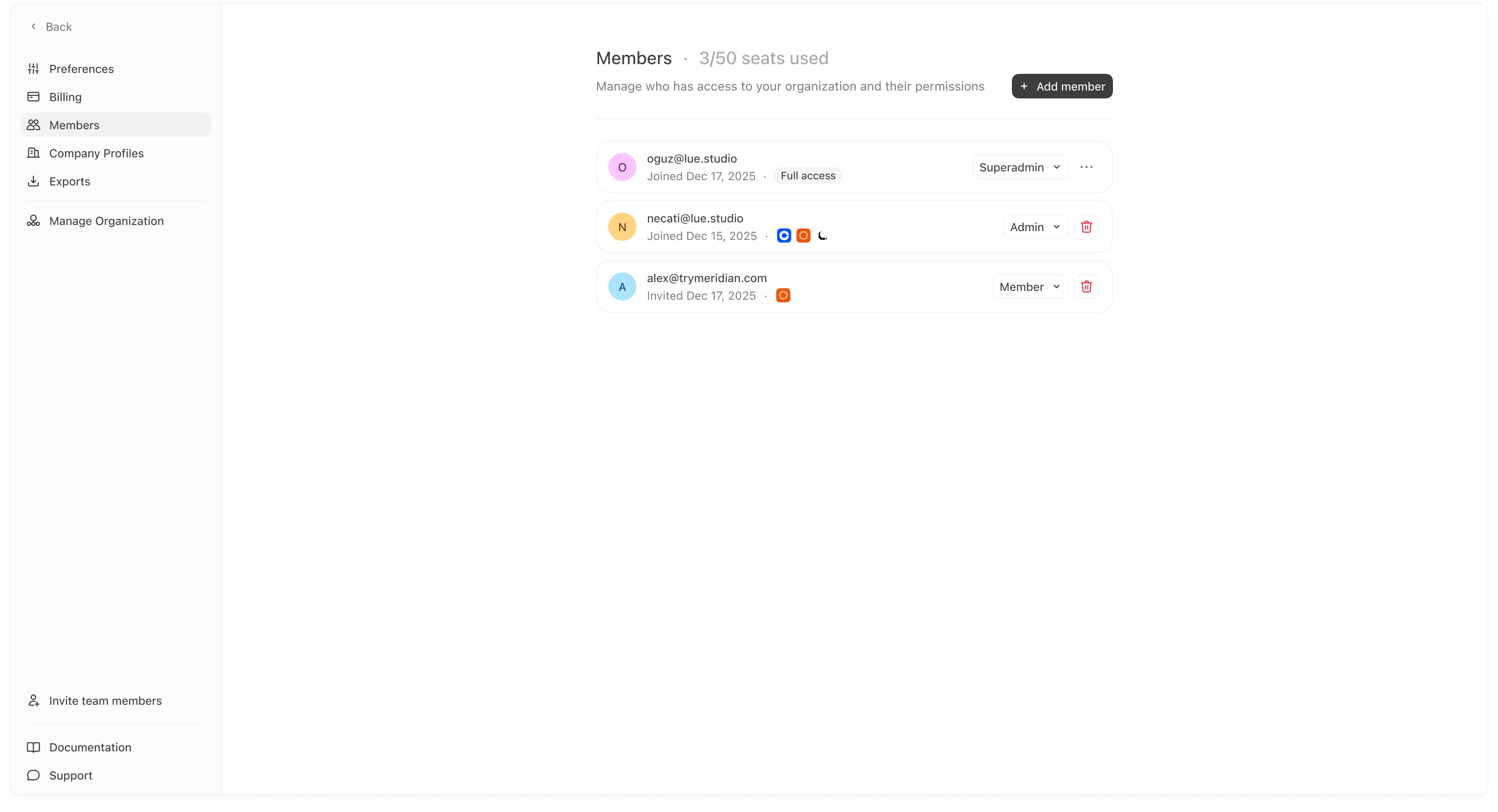
Members is where you manage user access. This includes inviting new teammates, assigning roles, and controlling which **Company Profiles** each member can access.
If your organization manages multiple brands or client profiles, this page is essential for keeping access clean and preventing accidental edits in the wrong profile.
 ## What you can do here
### Invite a new member
Click **Add member** to invite a teammate.
## What you can do here
### Invite a new member
Click **Add member** to invite a teammate.
 In the invite modal you can set:
* **Email address**: the person you’re inviting.
* **Role**: Member / Admin / Superadmin (available options depend on your workspace).
* **Profile access**: which Company Profiles this person can access.
#### Profile access behavior (important)
You’ll see guidance like: “Leave empty to grant access to all profiles.”
That means:
* If you select **no profiles**, the member gets access to **all** company profiles.
* If you select specific profiles, the member gets access **only** to those profiles.
This is useful if you manage multiple brands and want teammates to work only on certain profiles.
### Change a member’s role
In the member list, use the role dropdown (e.g., Admin / Member) to change permissions.
Roles typically determine who can:
* manage settings,
* manage integrations,
* invite/remove members,
* and edit key workspace configuration.
Exact permissions can vary by plan and configuration. If you’re unsure, use the practical rule: Superadmins manage org-wide settings; Members manage day-to-day.
### Edit a member’s Company Profile access
If you click the “…” menu or access control on a member, you may see an **Edit profile access** modal.
Use this when:
* a teammate should only work on one brand/client profile,
* or you want to remove access without removing the user entirely.
### Remove a member
If you click the trash/remove icon, you’ll see a confirmation modal.
Removing a member:
* revokes their access to the organization immediately,
* and prevents them from accessing any company profiles in that org.
## Seats used
At the top of Members you may see “X / Y seats used.” This helps you track capacity and avoid hitting seat limits when inviting new teammates.
## Best practices
* Use profile access to prevent “wrong account” mistakes when you manage multiple brands.
* Keep Admin access limited to 1–2 owners.
* If someone only needs visibility, use a lower role and restrict profile access.
In the invite modal you can set:
* **Email address**: the person you’re inviting.
* **Role**: Member / Admin / Superadmin (available options depend on your workspace).
* **Profile access**: which Company Profiles this person can access.
#### Profile access behavior (important)
You’ll see guidance like: “Leave empty to grant access to all profiles.”
That means:
* If you select **no profiles**, the member gets access to **all** company profiles.
* If you select specific profiles, the member gets access **only** to those profiles.
This is useful if you manage multiple brands and want teammates to work only on certain profiles.
### Change a member’s role
In the member list, use the role dropdown (e.g., Admin / Member) to change permissions.
Roles typically determine who can:
* manage settings,
* manage integrations,
* invite/remove members,
* and edit key workspace configuration.
Exact permissions can vary by plan and configuration. If you’re unsure, use the practical rule: Superadmins manage org-wide settings; Members manage day-to-day.
### Edit a member’s Company Profile access
If you click the “…” menu or access control on a member, you may see an **Edit profile access** modal.
Use this when:
* a teammate should only work on one brand/client profile,
* or you want to remove access without removing the user entirely.
### Remove a member
If you click the trash/remove icon, you’ll see a confirmation modal.
Removing a member:
* revokes their access to the organization immediately,
* and prevents them from accessing any company profiles in that org.
## Seats used
At the top of Members you may see “X / Y seats used.” This helps you track capacity and avoid hitting seat limits when inviting new teammates.
## Best practices
* Use profile access to prevent “wrong account” mistakes when you manage multiple brands.
* Keep Admin access limited to 1–2 owners.
* If someone only needs visibility, use a lower role and restrict profile access.