> ## Documentation Index
> Fetch the complete documentation index at: https://docs.trymeridian.com/llms.txt
> Use this file to discover all available pages before exploring further.
# Preferences
> Set your organization name and other workspace-wide defaults.
Preferences is where you manage basic organization-level settings that show up throughout Meridian. Most teams touch this page when they first set up their workspace (naming) and occasionally when ownership or billing changes.
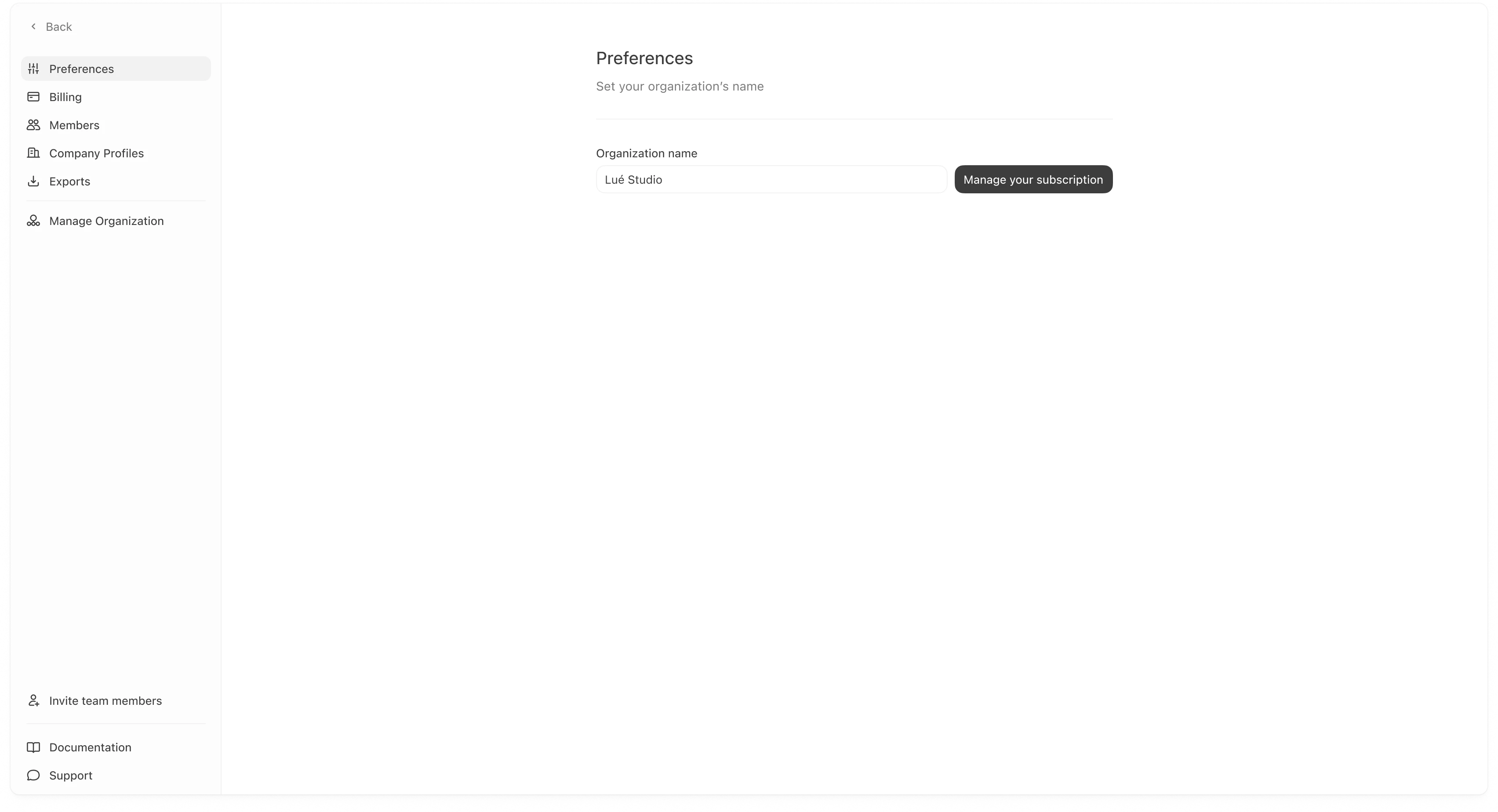 ### Update your organization name
Your organization name is the display name used across the dashboard (for example in headers, settings, and shared views).
To update it:
1. Go to **Settings → Preferences**.
2. Edit **Organization name**.
3. Save your changes (if a save action is shown in your UI).
If you manage multiple brands inside one organization, your organization name is not the same thing as a “Company Profile.” Company Profiles are configured in **Settings → Company Profiles**.
### Manage subscription
If you see a **Manage your subscription** button, it will take you to your subscription management flow (plan changes, billing owner actions, etc.).
If you are on an Enterprise plan, subscription changes may be restricted to specific roles.
### Update your organization name
Your organization name is the display name used across the dashboard (for example in headers, settings, and shared views).
To update it:
1. Go to **Settings → Preferences**.
2. Edit **Organization name**.
3. Save your changes (if a save action is shown in your UI).
If you manage multiple brands inside one organization, your organization name is not the same thing as a “Company Profile.” Company Profiles are configured in **Settings → Company Profiles**.
### Manage subscription
If you see a **Manage your subscription** button, it will take you to your subscription management flow (plan changes, billing owner actions, etc.).
If you are on an Enterprise plan, subscription changes may be restricted to specific roles.