

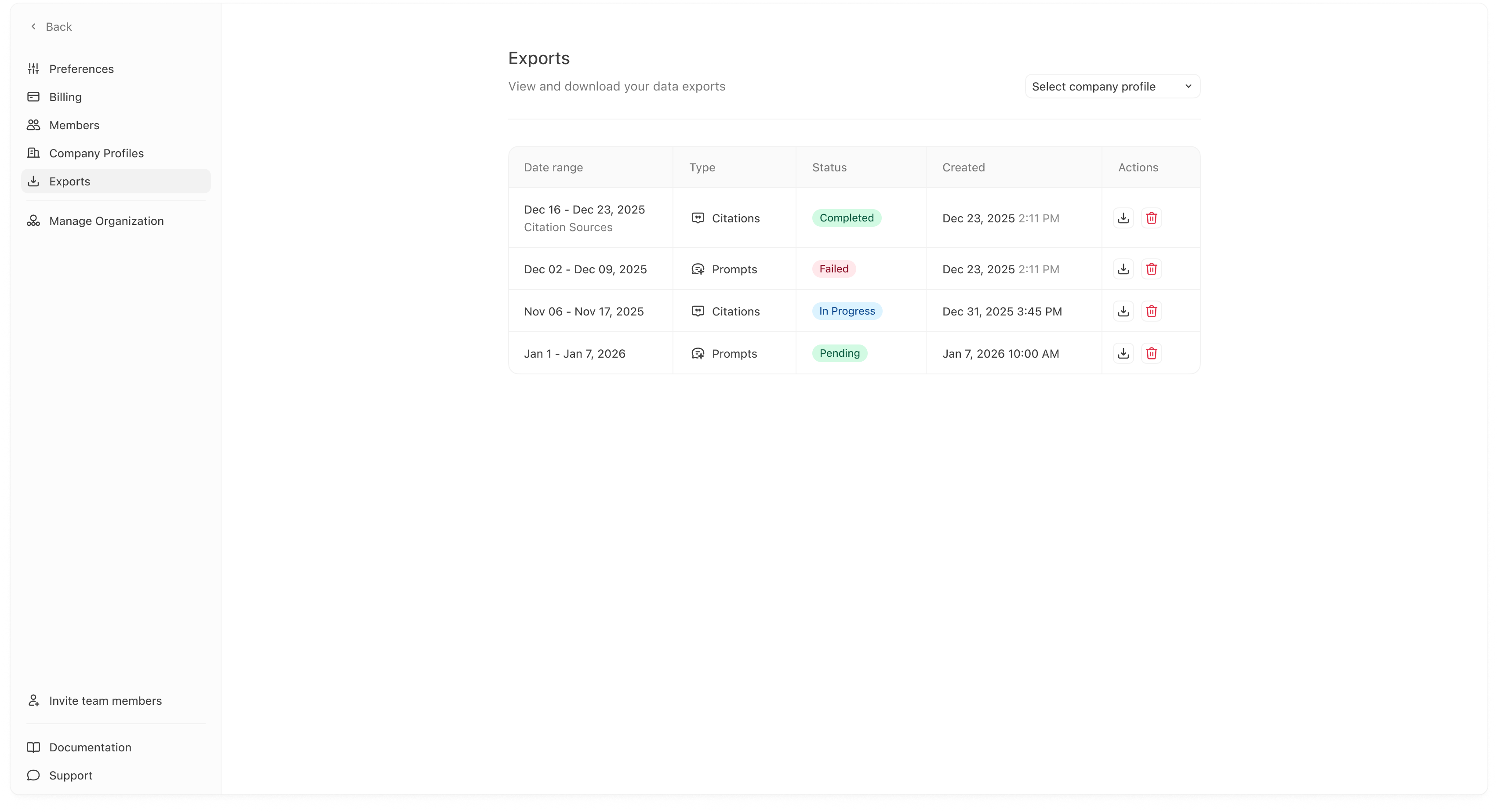
Select a company profile
Use the dropdown in the top right to choose a profile. Until you select one, you will see an empty state. Once selected, you’ll see a table of exports for that profile.What you see in the exports table
Date range
The time window the export covers (for example: Dec 16–Dec 23). This is important when you use exports for reporting, because it tells you exactly which period the data represents.Type
The export category, such as:- Citations
- Prompts
Status
Each export has a status so you can tell whether it is ready:- Completed: the file is ready to download.
- In progress: the export is currently being generated.
- Failed: the export did not generate successfully.
Downloading and managing exports
In the Actions column you’ll typically see:- a download icon for downloading the export file
- a trash icon for deleting the export entry
Exports are a snapshot. If you want the latest numbers, generate a new export for your current date range rather than relying on an older file.
Common questions
“Why do I see Failed?”
A failed export usually means something went wrong during generation. The most common causes are temporary job issues or missing data in the selected period. If you see failures consistently:- try a wider date range,
- confirm the profile has prompts/citations data,
- and contact support with the export type and date range.