


What you can do here
Invite a new member
Click Add member to invite a teammate.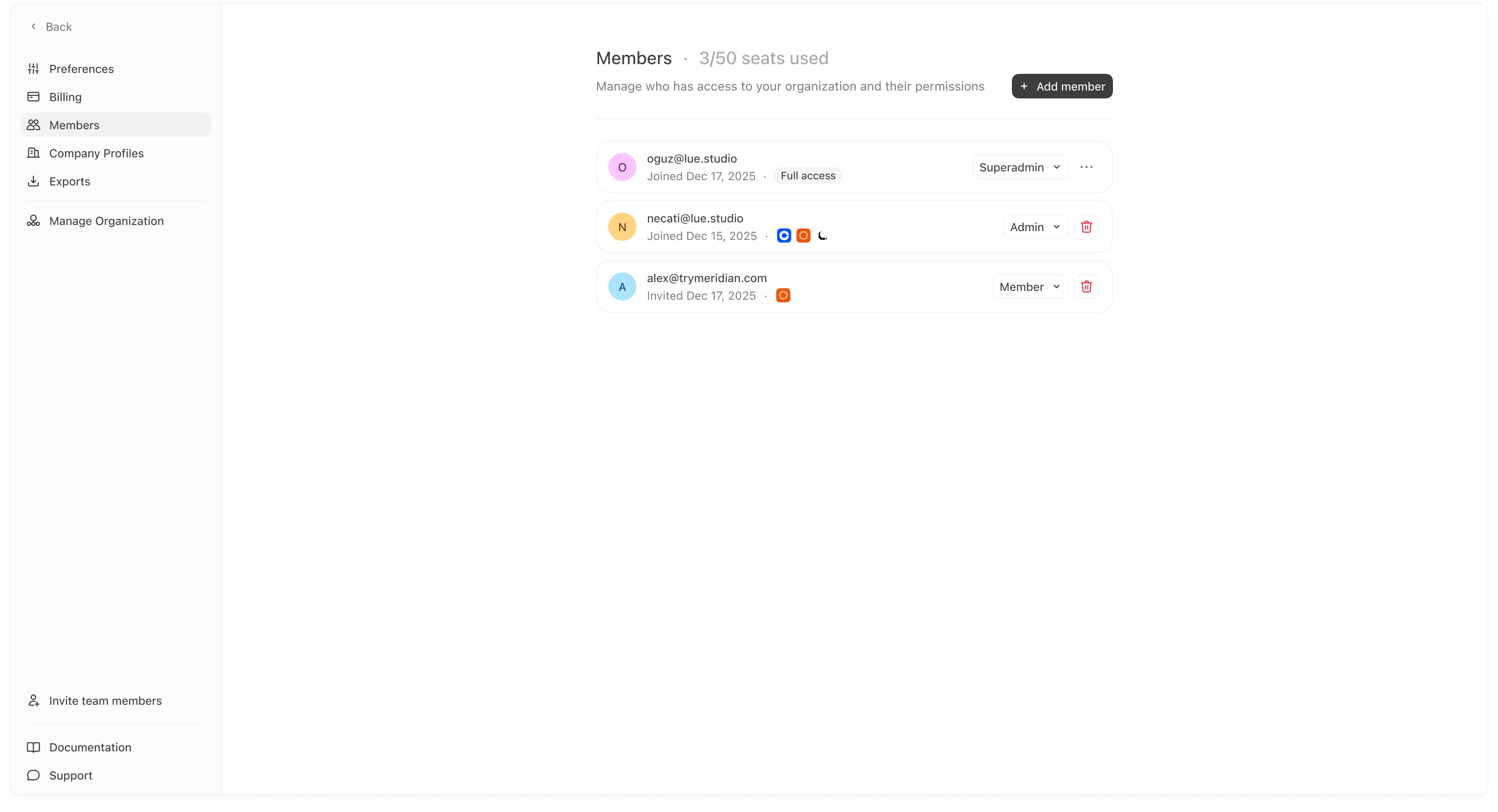
- Email address: the person you’re inviting.
- Role: Member / Admin / Superadmin (available options depend on your workspace).
- Profile access: which Company Profiles this person can access.
Profile access behavior (important)
You’ll see guidance like: “Leave empty to grant access to all profiles.” That means:- If you select no profiles, the member gets access to all company profiles.
- If you select specific profiles, the member gets access only to those profiles.
Change a member’s role
In the member list, use the role dropdown (e.g., Admin / Member) to change permissions. Roles typically determine who can:- manage settings,
- manage integrations,
- invite/remove members,
- and edit key workspace configuration.
Exact permissions can vary by plan and configuration. If you’re unsure, use the practical rule: Superadmins manage org-wide settings; Members manage day-to-day.
Edit a member’s Company Profile access
If you click the “…” menu or access control on a member, you may see an Edit profile access modal. Use this when:- a teammate should only work on one brand/client profile,
- or you want to remove access without removing the user entirely.
Remove a member
If you click the trash/remove icon, you’ll see a confirmation modal. Removing a member:- revokes their access to the organization immediately,
- and prevents them from accessing any company profiles in that org.
Seats used
At the top of Members you may see “X / Y seats used.” This helps you track capacity and avoid hitting seat limits when inviting new teammates.Best practices
- Use profile access to prevent “wrong account” mistakes when you manage multiple brands.
- Keep Admin access limited to 1–2 owners.
- If someone only needs visibility, use a lower role and restrict profile access.